

Download a WordPress Photo Gallery as a ZIP File
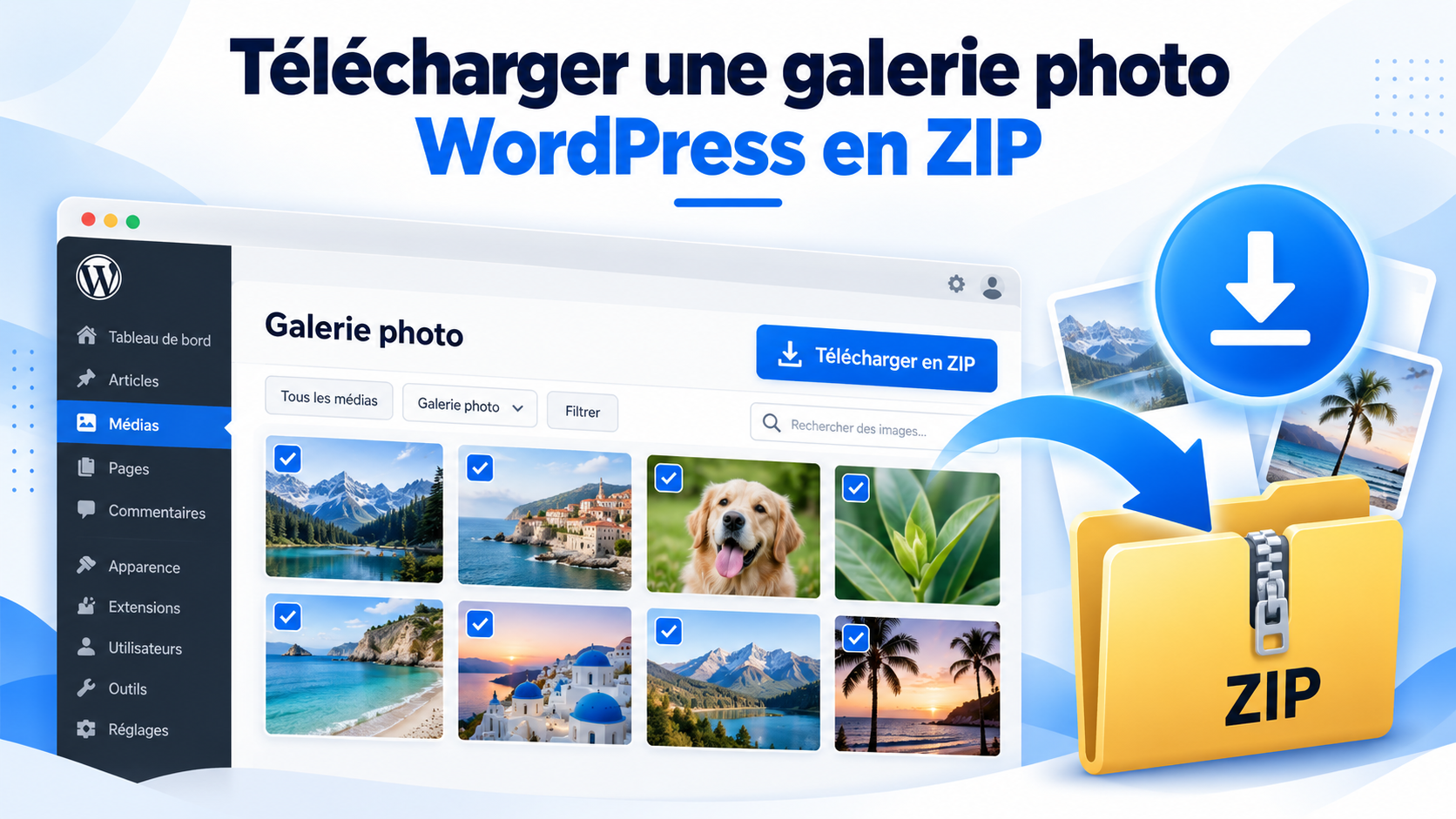
Download a WordPress photo gallery as a ZIP file:
Do you use WordPress to showcase your photos and want to let visitors download an entire gallery at once? Whether you are a professional photographer, artist, or portfolio website manager, offering gallery downloads as ZIP files can make sharing your images much easier.
Instead of asking visitors to save each photo individually, you can provide a ZIP file containing all the images from a gallery.
In this tutorial, we’ll show you how to offer WordPress photo gallery downloads as ZIP files and how to automate the process with a suitable plugin.
Why Offer a Photo Gallery Download as a ZIP File?
Imagine you are a professional photographer who has just finished a photo session for a client.
You have selected 80 photographs that you want to deliver. You create a private gallery on your WordPress site so the client can review the images.
The problem? If your gallery does not include a bulk download option, your client will have to save all 80 photos one by one.
This quickly becomes tedious, especially when galleries contain dozens or even hundreds of images.
Downloading the gallery as a ZIP file solves this problem.
A ZIP file is an archive that combines multiple files into a single downloadable file. Your client can download all the photographs from the gallery at once, then extract the archive on their computer.
This feature is especially useful for wedding photographers, event photographers, marketing agencies, and portfolio creators.
How to Download All Photos from a WordPress Gallery at Once?
To offer bulk downloads of your photographs, you need to generate a ZIP archive containing the images from your gallery, then make that archive available to your visitors.
There are several ways to do this.
You can manually create a ZIP file on your computer, upload it to your WordPress server, and add a download link to your page.
This method works, but you have to repeat the process every time you add, remove, or update photos in the gallery.
Another option is to use a WordPress plugin that can automatically generate ZIP files for your galleries.
That is one of the features offered by Obiweb Gallery.
Download a WordPress Photo Gallery as a ZIP File with Obiweb Gallery
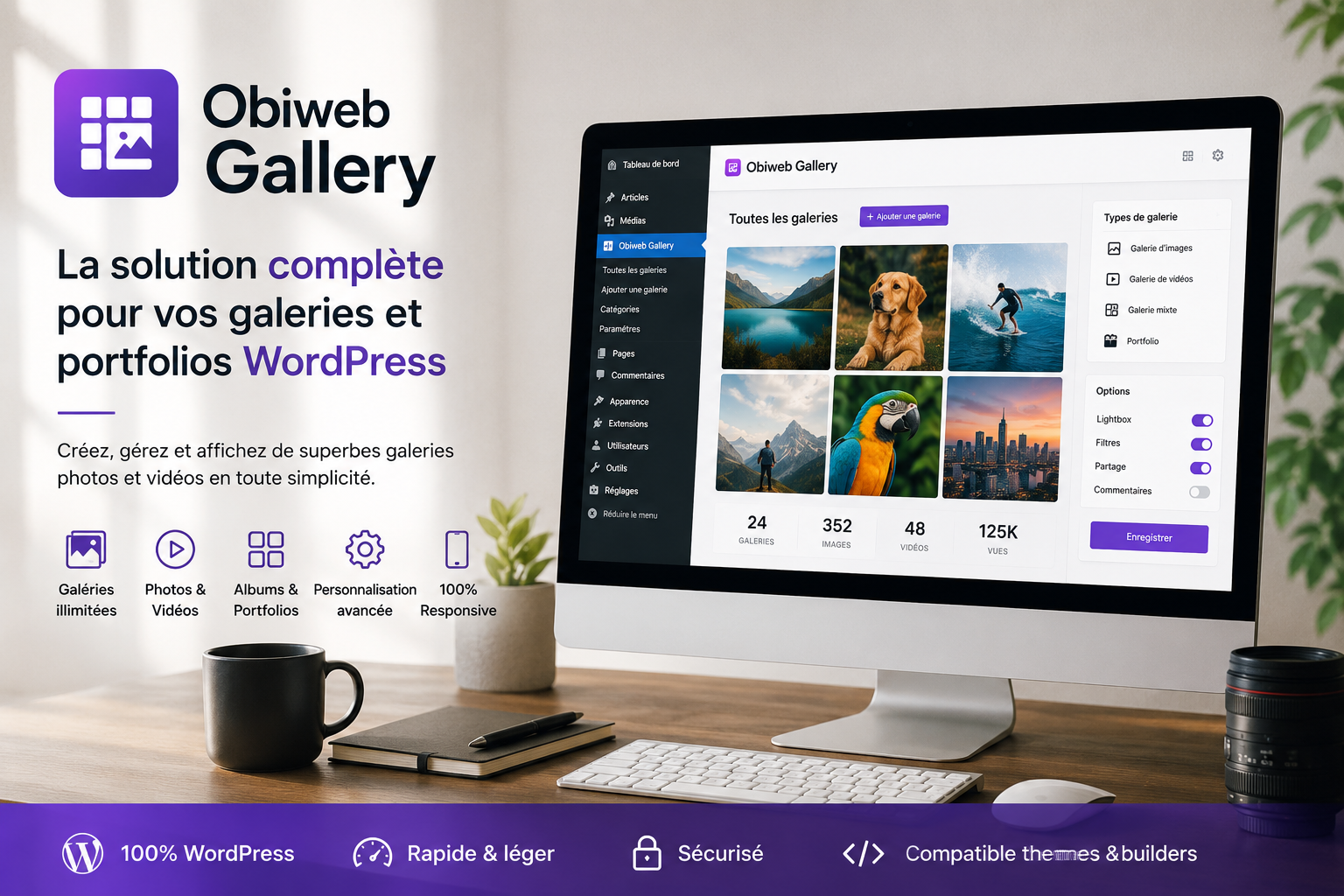
Obiweb Gallery is a WordPress plugin for creating and managing image galleries and portfolios. It also includes several features designed to simplify photo management, optimization, and downloads.
Among its features, the plugin can automatically generate a ZIP file for each gallery and provide a link that lets visitors download the images. Obiweb Gallery
Visitors can browse the photos directly on your site, then download the entire gallery in a single step.
How to Set Up ZIP Downloads?
Here are the main steps for offering this feature on your WordPress site.
1. Create your photo gallery. After installing and activating Obiweb Gallery, create a gallery and add the images you want to share with your visitors or clients.
2. Prepare the download. Check your gallery’s download options and make sure its ZIP archive is available. Obiweb Gallery includes an automatic ZIP file generation system.
3. Publish your gallery. Add your gallery to the WordPress page of your choice. Obiweb Gallery supports shortcodes as well as integrations with Elementor and WPBakery.
4. Test the download. Open the gallery as a visitor would, use the download link, and make sure the ZIP file contains the expected photographs.
The goal is to provide a simple experience: visitors browse the images in the gallery, then download the full set of photos whenever they want.
What Happens When You Update a Gallery?
A photographer may need to add new images after publishing a gallery or replace certain photographs.
Obiweb Gallery includes a manual ZIP archive regeneration system in the WordPress admin area, along with a scheduled task to keep the archives updated.
This feature eliminates the need to manually recreate each archive on your computer after making changes.
However, it is still important to make sure that the ZIP file available to visitors matches the latest version of your gallery.
Optimize Your Gallery Images with WebP
Bulk downloads are especially useful for your clients, but image file size can also affect your website’s performance.
High-resolution photographs can be large. When a gallery contains many images, displaying them can lead to longer loading times.
Obiweb Gallery includes an image conversion feature for WebP, along with optional integration with the Tinify API for compression.
The WebP format generally helps reduce the file size of images used on the web while maintaining good visual quality.
This lets you address two complementary needs: provide lighter, faster-loading galleries and allow your clients to download their photographs in a ZIP archive.
However, it is important to distinguish between the images displayed on your website and the files delivered to your clients. If you provide photographs intended for printing, make sure the archive contains the files in the expected dimensions and formats.
A Few Precautions Before Sharing Your Galleries
Before making a ZIP file available, make sure the photographs can actually be shared with the people who will access the gallery.
For a private photo session, it is best to protect access to the page and also verify the access conditions for the ZIP file itself. A protected page does not necessarily guarantee that the archive cannot be accessed directly through its URL.
Also remember to test the download from a mobile device and check the archive size, especially when your gallery contains high-resolution photographs.